User Guide
Hi Tutors! A warm welcome to our user guide, your companion for navigating and finding the full potential of TutorPro.
Table of Contents
Quick start
-
Ensure you have Java
11or above installed in your Computer.
-
Download the latest
tutorpro.jarfrom here. -
Copy the file to the folder you want to use as the home folder for your TutorPro.
-
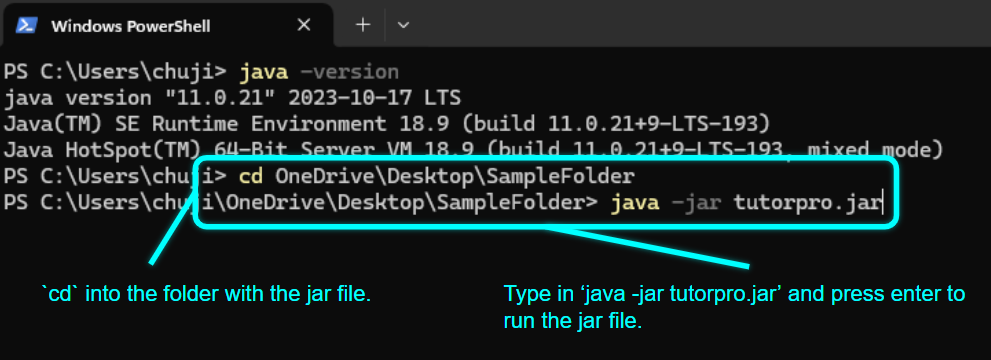
Open a command terminal,
cdinto the folder you put the jar file in, and use thejava -jar tutorpro.jarcommand to run the application.
-
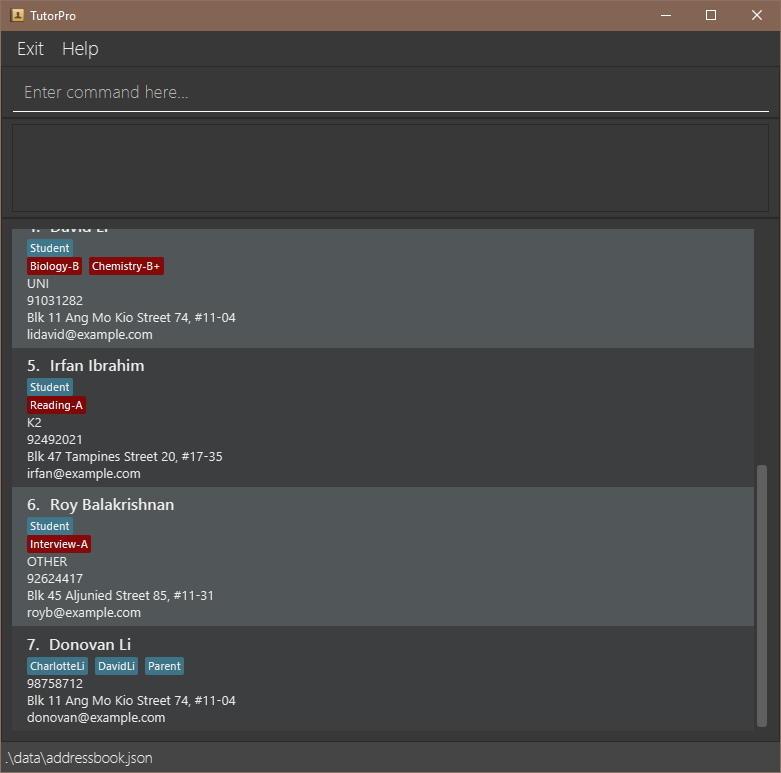
A GUI similar to the below should appear in a few seconds. Note how the app contains some sample data.
-
Type the command in the command box and press Enter to execute it. e.g. typing
helpand pressing Enter will open the help window.
Some example commands you can try:-
list: Lists all contacts. -
add n/John Doe p/98765432 e/johndoe@gmail.com a/Clementi Ave 123, Blk 321, #12-345 lvl/P5 sub/math-B sub/science-C: Adds a contact namedJohn Doeto your list of contacts. -
find John: Finds all contacts with names containing the word ‘John’. -
clear: Deletes all contacts. -
exit: Exits the app.
-
-
Refer to the Features below for details of each command.
Features
 Notes about the command format:
-
Words in
UPPER_CASEare the parameters to be supplied by the user.
E.g. inadd STUDENT_NAME,STUDENT_NAMEis a parameter which can be used asadd John Doe. -
Names can be duplicated as people can have the same names.
-
Phone numbers and emails must be unique.
-
Items in square brackets are optional.
E.g.n/NAME [t/TAG]can be used asn/John Doe t/friendor asn/John Doe. -
Items with
… after them can be used multiple times including zero times.
Items with … after them can be used multiple times. E.g.sub/SUBJECT-GRADE…can be used assub/math-B(i.e. 1 time),sub/math-B sub/science-C(i.e. 2 times), etc. -
Extraneous parameters for commands that do not take in parameters (such as
help,list,exitandclear) will be ignored.
E.g. if the command specifieshelp 123, it will be interpreted ashelp. -
If you are using a PDF version of this document, be careful when copying and pasting commands that span multiple lines as space characters surrounding line-breaks may be omitted when copied over to the application.
Adding new Students : add
Add a new student with their details to your TutorPro list.
Format: add n/STUDENT_NAME p/PHONE_NUMBER e/EMAIL_ADDRESS a/ADDRESS lvl/EDUCATION_LEVEL [sub/SUBJECT-GRADE]… [t/TAG]…
 Tip:
Tip:A student can have any number of subjects.
Examples:
add n/John Doe p/98765432 e/johndoe@gmail.com a/Clementi Ave 123, Blk 321, #12-345 lvl/P5 sub/math-B sub/science-C+add n/Jany Doh p/97862354 e/janydoh@email.com a/Changi St 79, Blk 12, #03-456 lvl/S5 t/seafoodAllergy
Caution:
Below are some constraints to follow when inputting parameters.
Constraints:
* For
STUDENT_NAME, capitalization (e.g. jOhN DoE) or extra/leading/trailing spaces does not affect the value (e.g. John Doe). The NAME should not have special characters (e.g. #, @, ! etc.).
* For
PHONE_NUMBER, the input must be an 8-digit number and unique.
* For
EMAIL, the input must consist of the username and the domain name of the email service provider. Must be unique as well.
* Format:
username@domain.com
* For
EDUCATION_LEVEL, the input must not contain special characters.
* For
SUBJECT-GRADE, the input must follow the following format: <1 or more words>-<1 or more non-space characters>
* This allows you to input subject-grade such as
Math-A*, Higher Chinese-B3 or Software Engineering-A-, where the subject is more than one word and the grade has numbers or special characters.
* Note:
SUBJECT refers to the subject the student is receiving tuition for, while GRADE refers to the grade the student obtained for their most recent test on that subject.
* E.g.
math-B indicates that the student is receiving tuition for Mathematics, and obtained a B grade for their most recent test for Mathematics.
* For
TAG, the input must be alphanumeric (e.g. must contain only alphabetical characters or numbers) and is not allowed to have spaces.
Adding new Parents : addp
Add a new parent with their details to your TutorPro list.
Format: addp n/PARENT_NAME p/PHONE_NUMBER e/EMAIL_ADDRESS a/ADDRESS [t/TAG]…
Examples:
addp n/Jonny Doe p/98765432 e/jonnyd@gmail.com a/Clementi Ave 123, Blk 321, #12-345
Caution:
Below are some constraints to follow when inputting parameters.
Constraints:
* For
PARENT_NAME, capitalization (e.g. jOhN DoE) or extra/leading/trailing spaces does not affect the value (e.g. John Doe). The NAME should not have special characters (e.g. #, @, ! etc.).
* For
PHONE_NUMBER, the input must be an 8-digit number
Editing a Person’s details : edit
Edit and/or update a particular person’s details/progress.
Format: edit INDEX cat/NEW_INFORMATION
-
INDEXrefers to list index of the person to be edited. -
cat/refers to the command prefix of the category that you want to edit. You can edit more than one category in the same command.- For name:
n/ - For phone number:
p/ - For email:
e/ - For address:
a/ - For education level:
lvl/ - For subjects:
sub/ - For tags:
t/
- For name:
Examples: For the example list shown below:
- John Doe, P5, Math-B
- Jany Doh, S1, Science-C
-
edit 1 sub/Math-AEdits the subject John Doe is being tutored for and his grade toMathandArespectively. -
edit 2 lvl/S2Edits the education level of Jany Doh toS2.
Caution:
Editing the
subject and tag categories will replace existing subjects and tags with the new information. For exmaple, - Current subjects: science-B, math-C
- Edit command:
sub/science-C- New subjects: science-c
As you can see, the existing information will be replaced with new information by you. When editing categories that the person does not have (e.g. Parents will not have subjects), the command will ignore these categories.
Also, below are some constraints to follow when inputting parameters.
Constraints:
_ For
CATEGORY, the input must be one of the following:
_
name, number, email, address, level, subject or tags
_ For
NEW_INFORMATION, the input format depends on the category
_ For
name, capitalization (e.g. jOhN DoE) or extra/leading/trailing spaces does not affect the value (e.g. John Doe). The NAME should not have special characters (e.g. #, @, ! etc.).
_ For
phone number, the input must be an 8-digit number and unique.
_ For
email, the input must consist of the username and the domain name of the email service provider. It must also be unique.
_ Format:
username@domain.com
_ For
level, the input must not contain special characters (e.g. #, @, ! etc).
* For
subject, the input must follow the format SUBJECT-GRADE, as explained in the add command above.
* For
tag, the input must follow the specific formatting explained in the add command above.
Deleting existing Students : delete
Deletes the person at the specified index from your list of contacts.
Format: delete LIST_NUMBER
Example:
- John Doe, 98765432, Clementi Ave 123…, P5, Math-B
- Johnny, 91234567, Jurong…, P5, Science-B
- Johnsy Boy, 83947237, <address>…, P3, English-C
User input: delete 3 → Johnsy Boy will be deleted.
Caution:
Below are some constraints to follow when inputting parameters.
Constraints:
* For
LIST_NUMBER, the input must be a positive integer (1, 2, 3, …), and the input must be a number not greater than the size of the list.
* E.g. if the list contains 3 people, inputting
4 will print an error message.
Finding certain Students : find
Find a list of persons with names matching the user input.
The entire word (i.e. John instead of Joh) should be inputted for this command to work.
Format: find NAME
Examples:
find John Doefind johnfind dOE
Caution:
Below are some constraints to follow when inputting parameters.
Constraints:
* For
NAME, capitalization (e.g. jOhN DoE) or extra/leading/trailing spaces does not affect the value (e.g. John Doe). The NAME should not have special characters (e.g. #, @, ! etc.).
Adding events : event
Add events to your schedule.
NOTE: For the current version of TutorPro, you will not be able to view your events as we are still working on the schedule command for the next update, which will be coming really soon!
Format: event n/NAME at/TIME h/HOURS [t/TAG]...
Examples:
event n/Bob math tutoring at/2024-03-04 12:00 h/2 t/math t/tutoringevent n/John Doe science tutoring at/2024-10-10 14:00 h/1
Caution:
Below are some constraints to follow when inputting parameters.
Constraints:
* For
TIME, the input should follow the format of YYYY-MM-DD HH:mm.
Setting reminders : remind
Set reminders for important deadlines or milestones(e.g. O-Levels, A-Levels).
NOTE: For the current version of TutorPro, you will not be able to view your reminders as we are still working on the schedule command for the next update, which will be coming really soon!
Format: remind n/DESCRIPTION at/TIME t/TAG
Example:
remind n/Bob uni app deadline at/2024-03-04 12:00 t/urgent
Caution:
Below are some constraints to follow when inputting parameters.
Constraints:
* For
TIME, the input should follow the format of YYYY-MM-DD HH:mm.
Clearing all entries : clear
Clears all entries from your TutorPro list.
Format: clear
Listing all persons : list
Shows a list of all persons in your TutorPro list.
Format: list
Exiting the program : exit
Exits the program.
Format: exit
Saving the data
TutorPro data are saved in the hard disk automatically after any command that changes the data. There is no need to save manually.
Editing the data file
TutorPro data are saved automatically as a JSON file [JAR file location]/data/addressbook.json. Advanced users are welcome to update data directly by editing that data file.
 Caution:
If your changes to the data file makes its format invalid, TutorPro will discard all data and start with an empty data file at the next run. Hence, it is recommended to take a backup of the file before editing it.
Furthermore, certain edits can cause TutorPro to behave in unexpected ways (e.g., if a value entered is outside of the acceptable range). Therefore, edit the data file only if you are confident that you can update it correctly.
Coming Soon in next update : schedule
Lists out events and reminders that occur in the incoming specified number of days. If no number of days is specified, events and reminders that occur in the next 14 days will be listed.
Format: schedule [NUMBER_OF_DAYS]
Example:
-
schedule 10Displays your schedule (consisting of all your events and reminders) for the next 10 days. -
scheduleDisplays your schedule for the next 14 days.
FAQ
Q: How do I transfer my data to another Computer?
A: Install the app in the other computer and overwrite the empty data file it creates with the file that contains the data of your previous AddressBook home folder.
Q: Error message says input cannot be blank but my input is not blank! What’s wrong with my input?
A: Currently, TutorPro only takes in commands with ASCII characters. Please ensure that your input command only contains ASCII characters.
Known issues
-
When using multiple screens, if you move the application to a secondary screen, and later switch to using only the primary screen, the GUI will open off-screen. The remedy is to delete the
preferences.jsonfile created by the application before running the application again.
Command summary
| Action | Format, Examples |
|---|---|
| Add |
add STUDENT_NAME p/PHONE_NUMBER a/ADDRESS lvl/EDUCATION_LEVEL [sub/SUBJECT-GRADE]… [t/TAG]… e.g. add John Doe p/98765432 e/johndoe@gmail.com a/Clementi Ave 123, Blk 321 #10-234 lvl/p5 sub/Math-B sub/Science-B
|
| Add parent |
addp PARENT_NAME p/PHONE_NUMBER a/ADDRESS [t/TAG]… e.g. addp n/Jonny Doe p/98765432 e/jonnyd@gmail.com a/Clementi Ave 123, Blk 321, #12-345
|
| Clear | clear |
| Delete |
delete LIST_NUMBER e.g. delete 3
|
| Edit |
edit INDEX [n/NAME] [p/PHONE_NUMBER] [e/EMAIL] [a/ADDRESS] [lvl/EDUCATION_LEVEL] [sub/SUBJECT-GRADE]… [t/TAG]…e.g. edit 2 n/James Lee e/jameslee@example.come.g. edit 5 sub/math-b sub/biology-c+
|
| Find |
find KEYWORD [MORE_KEYWORDS]e.g. find James Jake
|
| List | list |
| Help | help |
| Event |
event n/NAME at/TIME h/HOURS [t/TAG]... e.g. event n/John Doe science tutoring at/2024-10-10 h/1
|
| Remind |
remind n/DESCRIPTION at/TIME t/TAG e.g. remind n/Bob uni app deadline at/2024-03-04 12:00 t/urgent
|
| Exit | exit |